Test in Postman
This guide will walk you through the process of downloading the Swagger file for CELITECH's API and then importing the collection into Postman. The Swagger file is a powerful resource for interacting with and testing the API.
Step 1: Downloading the Swagger File
- Navigate to the URL: Open your web browser and navigate to https://www.api.celitech.com/swagger.yaml.
- Right-Click and Save: Once the YAML file is displayed, right-click on the page and choose "Save As" to download the file to your local system.
- Select Location: Choose a suitable location on your computer where you want to save the file and click "Save."
Step 2: Importing into Postman
Once the Swagger file is downloaded, follow these steps to import it into Postman:
- Open Postman: Launch the Postman application.
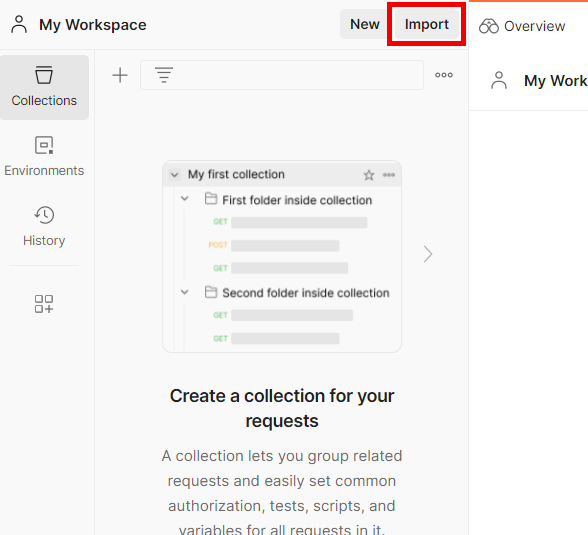
- Click "Import": In the upper left corner, click the "Import" button.
- Choose File: Select "Upload Files" and browse to the location where you saved the Swagger YAML file.
- Select and Import: Click on the downloaded YAML file and then click "Import."
Step 3: Explore the Collection
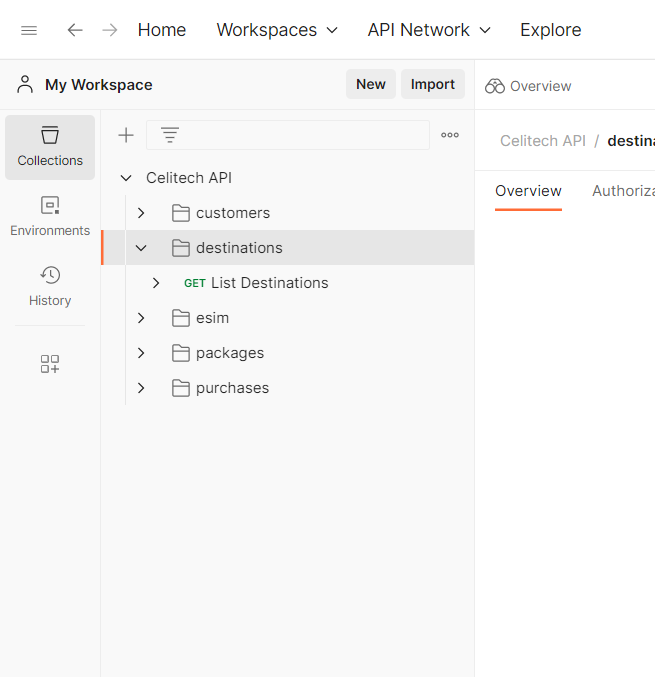
Now, the CELITECH API collection should be visible in your Postman workspace.
Step 4: Setup Credentials
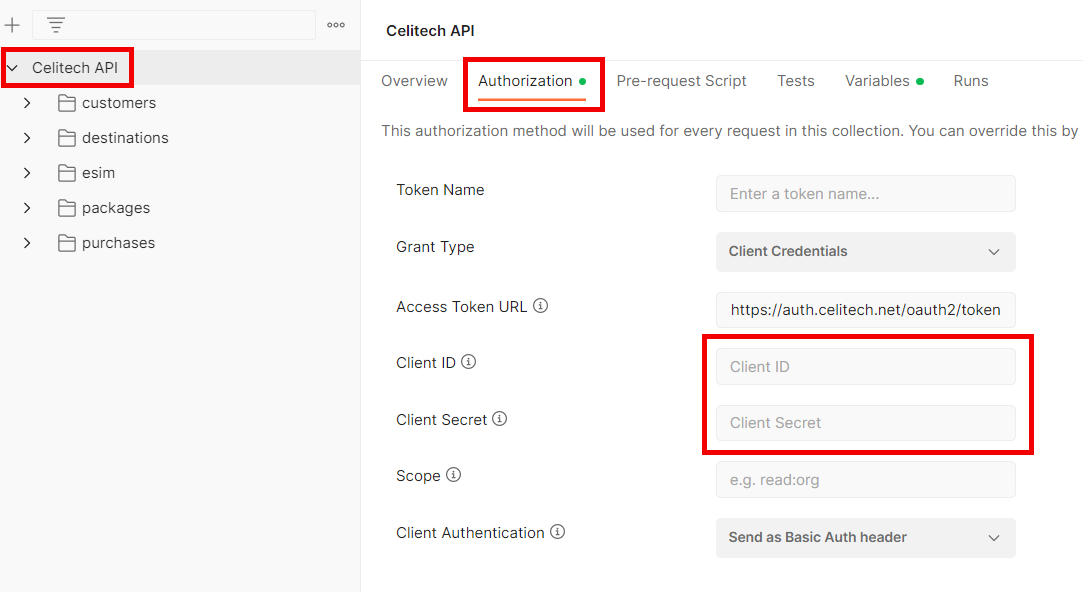
- Highlight Colletion: Click on the CELITECH API Collection.
- Choose "Authorization": In the upper middle, click the "Authorization" tab.
- Fill Credentials: Provide the
Client IDandClient Secretthat you copied from the Dashboard.
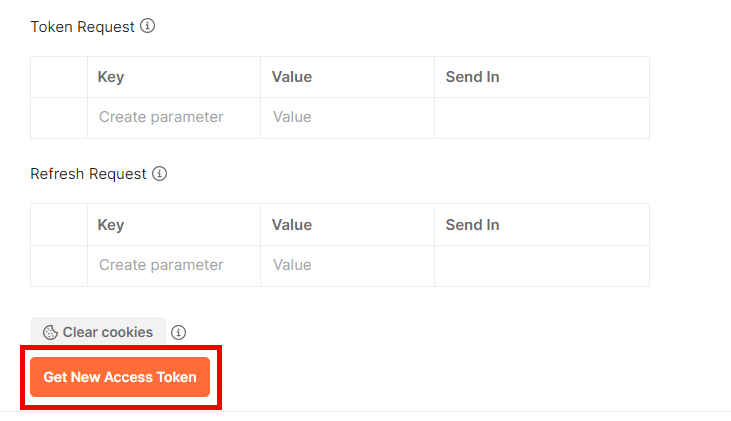
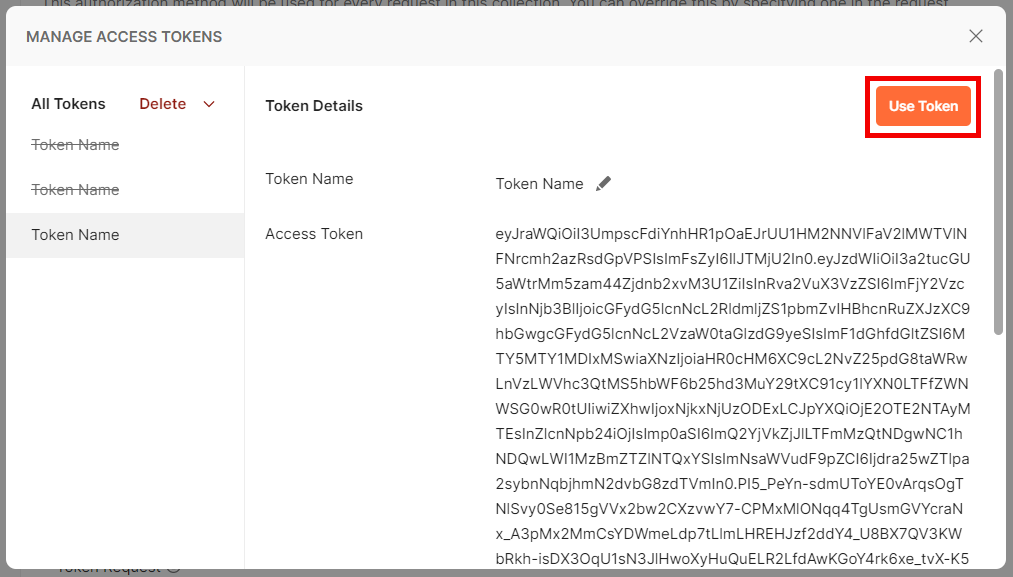
- Generate Token: Click on the "Get New Access Token" button and then "Use Token".
Step 5: Make your first Request
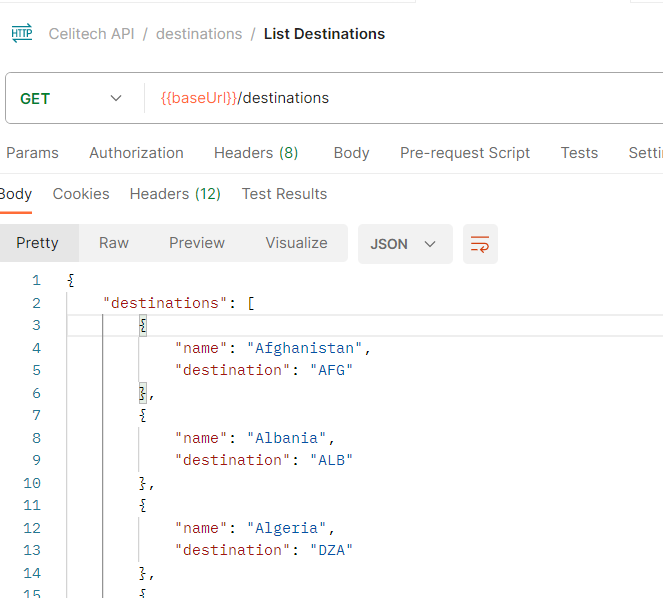
Click on Get Destinations endpoint and execute the request.
Conclusion
Importing the Swagger file into Postman provides an intuitive way to interact with CELITECH's API. It's a valuable tool for developers and testers to understand, experiment with, and validate the API's responses. For any additional support or inquiries, please contact CELITECH's support team.